How to Make YouTube Shorts From a Podcast
Choose exchanges that stand alone, preserve enough context, crop one or two speakers clearly and write captions that remain readable on a phone.

Selecting Standalone Exchanges
Creating YouTube Shorts from a podcast requires identifying segments that make sense without the surrounding conversation. A thirty-second clip must stand on its own, delivering a complete thought or a distinct piece of advice. If the listener needs to hear the previous minute to understand the point, the segment is too dependent on context. Look for self-contained narratives, such as a specific tip, a brief anecdote, or a definitive answer to a common question. These exchanges retain their meaning even when isolated from the full hour or two of the original recording.
Check the audio levels and clarity before committing to a segment. Background noise or overlapping speech can distract viewers on mobile devices, where audio quality is often compromised by speakers. Ensure the host or guest speaks clearly and at a consistent volume. If a segment contains laughter, silence, or dead air, trim those parts to maintain a tight pace. The goal is a clean, focused audio track that holds attention without requiring visual cues to follow the conversation.
Visual Framing for Mobile
Vertical video demands a different approach to framing than horizontal broadcast formats. Crop the video to focus on one or two speakers, ensuring their faces are clearly visible and centered. If the original recording shows a wide shot of a studio, zoom in to create an intimate connection with the viewer. Avoid static shots of a single speaker if the exchange involves dialogue, as this can feel monotonous. Switching angles or adjusting the crop to follow the active speaker keeps the visual element dynamic and engaging.
Test the framing on a small screen before finalizing the edit. What looks balanced on a large monitor may appear cramped or off-center on a smartphone. Ensure that important facial expressions are not cut off by the vertical aspect ratio. The visual should support the audio without competing for attention. A clear, well-framed subject helps retain viewers who are scrolling through their feed, providing a visual anchor for the spoken content.

Readable Captioning
Captions are essential for accessibility and for viewers watching without sound. Use word-by-word captions that appear in sync with the speech, highlighting each word as it is spoken. This style keeps the viewer’s eye on the screen and reinforces the message. Choose a font size that is large enough to read comfortably on a small display, but not so large that it obscures the speaker’s face. Position the text in the lower third of the screen to avoid covering key visual elements.
Ensure the captions are easy to read against the background. Use a solid color or a subtle shadow to create contrast, especially if the background is busy or changes frequently. Avoid using complex fonts or colors that blend into the video. The text should be legible at a glance, allowing viewers to follow the conversation even in noisy environments. Clear, concise captions enhance the viewing experience and make the content more accessible to a wider audience.
Automating the Process
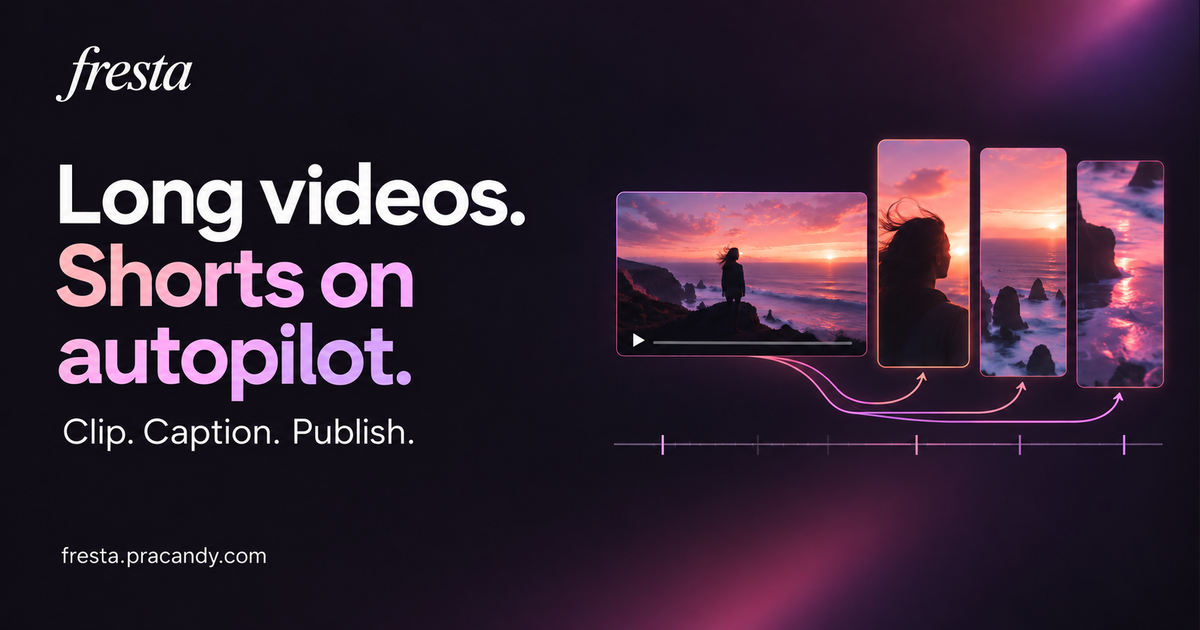
For creators producing multiple episodes, manual editing can become time-consuming. Fresta offers a workflow that automates the creation of vertical Shorts from owned or licensed recordings. It handles the cropping, captioning, and mixing of music, producing a finished MP4 file ready for review. This tool supports English, Hindi, and Hinglish, making it versatile for diverse audiences. The automated process ensures consistency in style and quality across multiple videos, saving time on repetitive tasks.
Before publishing, review the generated Short to ensure the audio and video align correctly. Fresta allows you to check the output before scheduling it to a connected YouTube channel. This step is crucial for maintaining quality control and ensuring the content meets your standards. While the tool streamlines the production process, it does not verify content rights or guarantee specific views. For those managing other platforms, resources like Instalaz guides can help with broader social media scheduling, though Fresta focuses specifically on YouTube Shorts.